Azure Update Management Troubleshooting
Purpose: concise runbook for diagnosing VMs that won't connect to Azure Update Manager / Log Analytics.
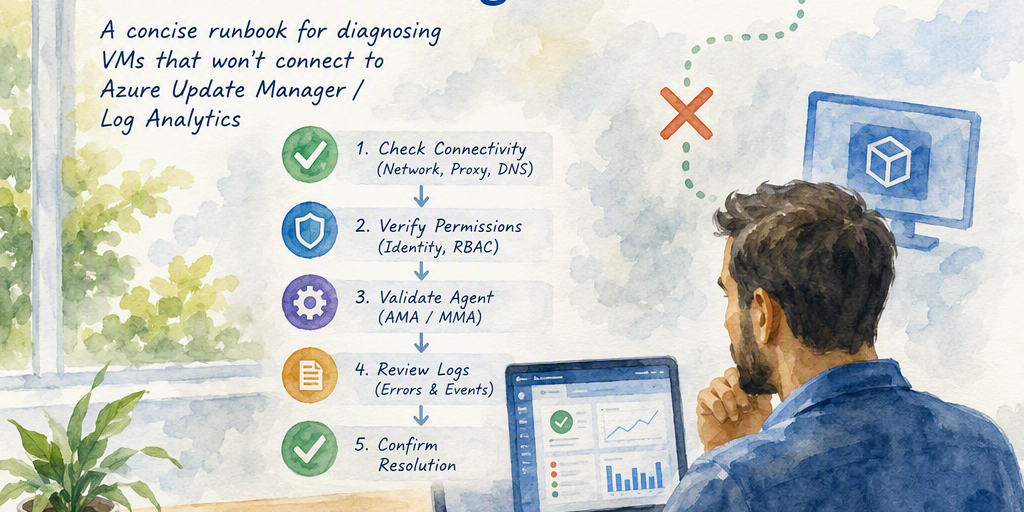
This runbook distinguishes the current Azure Update Manager from the legacy Automation Update Management service. Azure Update Manager generally does not require an Automation account, a Log Analytics workspace, or a monitoring agent for Azure VM update assessment and installation. Legacy Automation Update Management does require an Automation account, a linked Log Analytics workspace, and the appropriate monitoring agent.
Identify the deployment
- Azure Update Manager: Applies to Azure VMs and Arc-enabled servers. Start with Azure Resource Manager permissions, VM or Arc agent health, supported operating system and agent versions, extension status, and network access to required Azure services.
- Legacy Automation Update Management: Applies to deployments configured through an Automation account. Check the Automation account, linked Log Analytics workspace, and the legacy monitoring agent. Use this path only when the environment still uses the legacy service.
- Azure VM versus Arc-enabled server: Azure VMs use the Azure VM Agent and Azure VM extension APIs. Arc-enabled servers use the Azure Connected Machine agent, azcmagent, and connected-machine extensions.
Quick checklist
- Identify whether the resource is an Azure VM or an Arc-enabled server.
- Confirm the operating system and its support status for the selected service.
- Confirm that the Azure VM Agent or Azure Connected Machine agent is installed, running, and current.
- Confirm that the required resource providers are registered and that the operator has the required Azure RBAC permissions.
- Inspect the relevant extension provisioning state and extension logs.
- Confirm outbound HTTPS 443 access to the endpoints required by the selected agent, region, proxy, and service.
- For legacy Automation Update Management only, confirm the Automation account and Log Analytics workspace linkage and the health of the legacy monitoring agent.
Set command variables
Run Azure CLI commands in Cloud Shell or on a machine with the Azure CLI installed. Replace every value in the following example with a real value before running it. The commands use shell variables so that blank values are less likely to be submitted accidentally.
RG='my-resource-group' VM='my-vm' SUBSCRIPTION_ID='00000000-0000-0000-0000-000000000000' az account set --subscription "$SUBSCRIPTION_ID" # Stop if a required value was not replaced. test -n "$RG" && test -n "$VM" && test -n "$SUBSCRIPTION_ID" || { echo "Set RG, VM, and SUBSCRIPTION_ID before continuing" >& exit 1; }Azure-side checks for an Azure VM
Check the VM power state, Azure VM Agent status, and instance-view extension status. Publisher and provisioning information come from the extension list; instance-view data is obtained from the instanceView property.
az vm get-instance-view \ --resource-group "$RG" \ --name "$VM" \ --query '{vmAgent:instanceView.vmAgent, statuses:instanceView.statuses, extensions:instanceView.extensions}' \ --output json az vm extension list \ --resource-group "$RG" \ --vm-name "$VM" \ --query '[].{name:name,publisher:publisher,type:type,typeHandlerVersion:typeHandlerVersion,provisioningState:provisioningState,settings:settings}' \ --output tableReview the VM Agent status for a successful state and inspect any extension whose provisioning state is Failed, Creating, or Updating. Do not delete an extension until its exact name, publisher, type, and purpose have been identified.
Azure-side checks for an Arc-enabled server
Use the connected-machine commands rather than Azure VM commands for Arc-enabled servers.
RESOURCE_GROUP='my-arc-resource-group' MACHINE_NAME='my-arc-machine' az connectedmachine show \ --resource-group "$RESOURCE_GROUP" \ --name "$MACHINE_NAME" \ --query '{name:name,status:status,agentVersion:agentVersion,provisioningState:provisioningState}' \ --output json az connectedmachine extension list \ --resource-group "$RESOURCE_GROUP" \ --machine-name "$MACHINE_NAME" \ --query '[].{name:name,publisher:publisher,type:type,typeHandlerVersion:typeHandlerVersion,provisioningState:provisioningState}' \ --output tableOn the server, azcmagent show reports the Connected Machine agent state and connectivity details.
Resource providers and permissions
Check registration for the providers used by the deployment. The exact set can vary by resource type, region, and enabled features.
az provider show --namespace Microsoft.Compute \ --query registrationState --output tsv az provider show --namespace Microsoft.HybridCompute \ --query registrationState --output tsv az provider show --namespace Microsoft.Maintenance \ --query registrationState --output tsv # Required only for legacy Automation Update Management deployments. az provider show --namespace Microsoft.Automation \ --query registrationState --output tsv az provider show --namespace Microsoft.OperationalInsights \ --query registrationState --output tsvThe operator must have permission to read the VM or Arc resource, view extension and instance-view data, and configure or run update operations. Additional permissions may be required at the subscription, resource-group, Automation account, or Log Analytics workspace scope. Verify the effective role assignments if the portal reports an authorization or access error.
VM-side checks for Azure Update Manager
Azure Update Manager does not require Azure Monitor Agent or the legacy Microsoft Monitoring Agent for its core update workflow. The required platform agent is the Azure VM Agent for Azure VMs or the Azure Connected Machine agent for Arc-enabled servers.
Windows
Get-Service WindowsAzureGuestAgent -ErrorAction SilentlyContinue Get-Service himds -ErrorAction SilentlyContinue Get-Service ExtensionService -ErrorAction SilentlyContinueWindowsAzureGuestAgent is the Azure VM Agent service. himds is used by the Azure Connected Machine agent. Service names and supporting services can differ by agent version, so also review the agent installation and event logs. Check Event Viewer under the Azure VM Agent, Azure Connected Machine agent, and extension-related logs for errors.
Linux
sudo systemctl status waagent --no-pager sudo systemctl status himds --no-pager sudo systemctl status gcad --no-pagerwaagent is the Azure Linux Agent. himds and gcad are commonly associated with the Arc Connected Machine agent. Review the relevant service journal and the extension handler logs under /var/log/azure/ when an extension reports a failure.
Legacy Automation Update Management checks
Run these checks only when the VM is registered with legacy Automation Update Management. They do not represent a prerequisite for the current Azure Update Manager.
AUTOMATION_ACCOUNT='my-automation-account' AUTOMATION_RESOURCE_GROUP='my-automation-resource-group' az automation account show \ --resource-group "$AUTOMATION_RESOURCE_GROUP" \ --name "$AUTOMATION_ACCOUNT" \ --query '{name:name,location:location,linkedWorkspace:properties.linkedWorkspace}' \ --output jsonOn Windows, the legacy Microsoft Monitoring Agent commonly uses the HealthService service. On Linux, the legacy agent commonly uses omsagent. These agents are different from Azure Monitor Agent and should not be substituted without following the migration or onboarding procedure for the selected service.
# Windows PowerShell, legacy MMA only Get-Service HealthService -ErrorAction SilentlyContinue Get-Service -Name OmsAgent* -ErrorAction SilentlyContinue # Linux, legacy OMS/MMA only sudo systemctl status omsagent --no-pagerFor legacy deployments, verify the workspace ID, workspace key, agent version, agent health, and the agent's connection to the workspace. Do not reinstall or re-register the legacy agent against a different workspace without recording the current configuration and following the service's supported procedure.
Network and proxy checks
Endpoint requirements vary by Azure region, cloud, agent, resource type, and enabled features. Allow outbound HTTPS 443 to the service-specific endpoints documented for the deployment rather than relying on a single universal list.
- Azure VM and Arc control plane: Permit access to Azure Resource Manager and the Azure VM Agent or Connected Machine agent dependencies, including the appropriate Azure cloud login, management, guest-notification, and Arc endpoints.
- Azure Monitor Agent: If AMA is installed for monitoring or another dependency, permit its regional data ingestion and configuration endpoints, such as the relevant *.ingest.monitor.azure.com, *.ods.opinsights.azure.com, *.oms.opinsights.azure.com, and *.monitoring.azure.com endpoints. Use the workspace and region-specific endpoint list for the agent version.
- Legacy Microsoft Monitoring Agent: Permit the workspace-specific *.ods.opinsights.azure.com and, where required, *.oms.opinsights.azure.com endpoints, along with authentication and management dependencies documented for the workspace region.
- Arc-enabled servers: Permit the Azure Arc endpoints for the applicable cloud and region, including authentication, management, guest notification, and Arc service endpoints. Endpoint names can differ between Azure public, Government, and other national clouds.
- Check NSGs, Azure Firewall, network virtual appliances, on-host firewalls, DNS resolution, TLS inspection, and proxy allowlists.
- If a proxy is used, configure the Azure VM Agent, Connected Machine agent, and any monitoring agent independently according to that agent's documentation. A proxy configured for one agent is not automatically used by the others.
A successful TCP or TLS test proves network reachability only. It does not prove that the agent is authenticated or authorized.
Extension logs and controlled remediation
Capture the failure before changing the resource. For Azure VMs, inspect the extension name, publisher, type, handler version, provisioning state, status messages, and instance-view substatuses. Review the corresponding handler directory under /var/log/azure/ on Linux or the extension and Azure VM Agent logs on Windows. For Arc-enabled servers, use the connected-machine extension details and the azcmagent logs.
Remove and reinstall an extension only when the extension is confirmed to be the failed component and the supported remediation procedure calls for it. Use the exact extension name and publisher returned by the list command; do not use a blank or generic publisher value.
EXTENSION_NAME='exact-extension-name-from-az-vm-extension-list' EXTENSION_PUBLISHER='exact-publisher-from-az-vm-extension-list' EXTENSION_TYPE='exact-type-from-az-vm-extension-list' EXTENSION_VERSION='supported-handler-version' # Review the values before executing either command. printf 'Resource group: %s\nVM: %s\nExtension: %s\nPublisher: %s\nType: %s\n' \ "$RG" "$VM" "$EXTENSION_NAME" "$EXTENSION_PUBLISHER" "$EXTENSION_TYPE" az vm extension show \ --resource-group "$RG" \ --vm-name "$VM" \ --name "$EXTENSION_NAME" \ --output json # Run deletion and reinstallation only with a documented, extension-specific configuration. # Do not use an empty settings object unless the extension documentation explicitly permits it. # az vm extension delete --resource-group "$RG" --vm-name "$VM" --name "$EXTENSION_NAME" # az vm extension set --resource-group "$RG" --vm-name "$VM" \ # --name "$EXTENSION_NAME" --publisher "$EXTENSION_PUBLISHER" \ # --version "$EXTENSION_VERSION" --settings @settings.jsonFor Arc-enabled servers, use az connectedmachine extension delete and az connectedmachine extension create only with the exact resource name, publisher, type, version, and documented settings.
Supported versions and operating systems
- Confirm that the operating system version is supported by Azure Update Manager or the legacy service selected for the deployment.
- Confirm that the Azure VM Agent, Azure Connected Machine agent, and any required extension handler meet the supported version requirements.
- Confirm that the VM is running, has a healthy guest agent, and has sufficient disk space and permissions for update assessment and installation.
- Check for a pending reboot, package-manager lock, Windows Update service failure, or another maintenance operation that can block assessment or installation.
Logs and outputs to collect
- Resource type, subscription, region, operating system, and whether the machine is an Azure VM or Arc-enabled server.
- Azure VM Agent or Connected Machine agent status and version.
- Output from the instance-view and extension-list commands, including the exact error and status messages.
- Relevant extension logs and Azure VM Agent, Connected Machine agent, Windows Event Viewer, or Linux journal entries.
- Resource-provider registration and authorization errors.
- Network, DNS, TLS, and proxy test results for the documented regional endpoints.
- For legacy Automation Update Management only, Automation account linkage, workspace details, and HealthService or omsagent status.
Recommended remediation sequence
- Identify the service: current Azure Update Manager or legacy Automation Update Management.
- Identify the machine type: Azure VM or Arc-enabled server.
- Verify the supported operating system, agent versions, machine power state, and Azure VM Agent or Connected Machine agent health.
- Verify required resource providers, effective permissions, and the resource's region and subscription configuration.
- Inspect extension provisioning state, instance-view status, and extension logs. Correct the reported configuration or dependency before reinstalling anything.
- Test DNS resolution and outbound HTTPS 443 access to the endpoints documented for the applicable agent, region, cloud, and proxy configuration.
- For legacy Automation Update Management only, verify the Automation account, linked Log Analytics workspace, and legacy monitoring agent registration.
- Use an extension-specific or agent-specific reinstall procedure only after collecting diagnostics and confirming the exact component that failed.
- After remediation, allow time for the next assessment or trigger a supported assessment from the portal. Confirm the result in Azure Update Manager or, for legacy deployments, in the Automation and Log Analytics views.
Notes: Replace all example variables and endpoint names with values from your environment and the applicable Azure service documentation. Do not remove an extension or register an agent to a workspace until its identity, purpose, configuration, and supported remediation procedure have been confirmed.
Summary
Practical guidance about Azure Update Management Troubleshooting.