IIS Azure Load Balancer
Goal: Host a highly available IIS web application on three Windows Server VMs in Azure, fronted by an Azure Load Balancer (LB) that distributes HTTP/HTTPS requests.
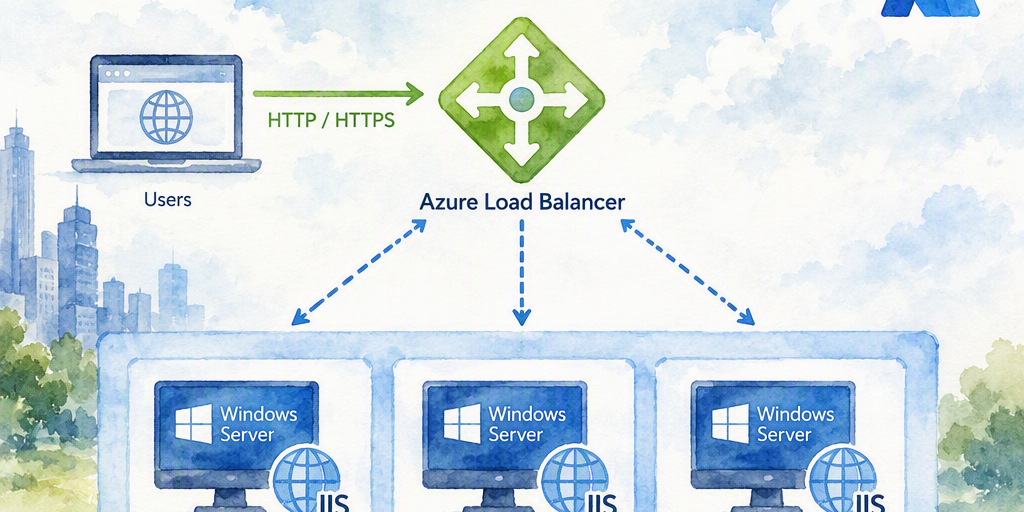
1. Scenario Overview
This guide describes a three-node IIS web farm running on Windows Server virtual machines in Azure. An Azure Standard Load Balancer distributes HTTP and HTTPS connections across the three IIS nodes.
The design assumes a single Azure region and virtual network, a stateless web tier or an application that can tolerate load-balancer session affinity, and an Azure subscription with permission to create networking and compute resources.
Three VMs in one region and subnet do not automatically provide strong high availability. For improved resilience, distribute the VMs across Availability Zones when the selected region and VM size support them. If zones are unavailable, place the VMs in an Azure availability set. The database, shared storage, DNS, certificate store, monitoring, and deployment systems also require resilient designs; any one of them can remain a single point of failure.
2. High-Level Architecture
- An Azure virtual network with a web subnet and, where appropriate, a separate frontend or management subnet.
- Three Windows Server VMs named web01, web02, and web03, each with IIS installed.
- An Azure Standard Load Balancer with either a public or internal frontend IP configuration.
- A backend pool containing the three VM network interfaces or backend IP configurations.
- HTTP or HTTPS health probes that determine whether each IIS node can receive traffic.
- Load-balancing rules for TCP port 80 and, if required, TCP port 443.
- DNS records that point each application hostname to the load-balancer frontend.
The Azure Load Balancer operates at Layer 4. It distributes TCP connections but does not perform URL routing, host-header routing, TLS termination, or Web Application Firewall inspection.
3. Prepare the Network
-
Create or select a virtual network. An example address space is 10.10.0.0/16, with a web subnet such as 10.10.1.0/24. Use a dedicated frontend subnet when the architecture requires one. Subnets for Azure Load Balancer frontend configurations and backend VMs must be appropriate for the selected virtual network and deployment design; an internal frontend is not required to use the web subnet.
-
Associate a Network Security Group with the web subnet or the VM NICs. For Standard Load Balancer deployments, create an inbound rule allowing the AzureLoadBalancer service tag to reach the health-probe port. This permits Azure health probes to reach the backend nodes.
For a public load balancer, client connections arrive through the public frontend but the original client source can be relevant to backend NSG evaluation. Allow HTTP and HTTPS from the intended client source ranges, such as the Internet when the application is intentionally public, or from approved corporate and partner ranges for a restricted application. Do not treat the AzureLoadBalancer service tag as a replacement for the client-traffic rule.
For an internal load balancer, allow web traffic from the approved VNet, peered networks, or private source ranges. Restrict RDP on port 3389 to an administrative source range or use Azure Bastion, just-in-time access, or another approved administration solution. Do not expose RDP broadly to the Internet.
-
Verify that Windows Defender Firewall on every VM allows the IIS listener and health-probe ports. An Azure NSG rule does not override a deny rule in the guest operating system.
-
Plan outbound connectivity. Standard Load Balancer deployments have secure-by-default outbound behavior, so provide an explicit outbound method such as a NAT Gateway, a load-balancer outbound rule, or another supported egress design. Confirm that the VMs can reach required services, including Windows Update, certificate services, package repositories, monitoring endpoints, databases, and external APIs.
4. Create and Configure the Three IIS Servers
-
Create three Windows Server VMs in the same virtual network. Use Windows Server 2019 or 2022 as appropriate for the application. A size such as D2as_v5 can be used as an initial example, but the correct size requires workload, performance, and cost validation. Attach one NIC per VM to the web subnet and place the VMs across Availability Zones or in an availability set.
-
Install IIS on each VM by running the following PowerShell commands in an elevated session:
Install-WindowsFeature -Name Web-Server -IncludeManagementTools Set-Content -Path 'C:\inetpub\wwwroot\index.html' -Value "Web server: $env:COMPUTERNAME" -
Configure the IIS sites, application pools, authentication, logging, and bindings consistently on all three nodes. Use a deployment pipeline or configuration management system rather than making untracked manual changes on individual servers.
-
If HTTPS is served directly by IIS, install the certificate and private key on every node. Configure compatible HTTPS bindings on every node. Multiple HTTPS sites require correct hostnames, SNI settings, and the appropriate certificate on each server. Azure Load Balancer does not terminate TLS or synchronize certificates between backend VMs.
5. Create the Azure Load Balancer
5.1 Select the Load Balancer Type
Use Azure Standard Load Balancer for production deployments. It supports zone-aware designs and uses explicit NSG rules rather than the less restrictive behavior associated with older Basic Load Balancer deployments. Confirm the selected region and frontend configuration support the required availability model.
5.2 Configure the Frontend IP
- Public access: Create a static public IP address and associate it with the load balancer frontend.
- Private access: Assign a private IP address from the appropriate virtual network subnet. The address may come from a dedicated frontend subnet rather than the web subnet.
Record the frontend IP address because it is required when creating DNS records and testing the service.
5.3 Configure the Backend Pool
- Create a backend pool associated with the correct virtual network.
- Add the NICs or backend IP configurations for web01, web02, and web03.
- Confirm that the backend interfaces use the intended subnet and that the NSG and guest firewall rules permit the configured listener and probe ports.
5.4 Configure a Health Probe
An HTTP health probe must receive an HTTP 200 response from each backend. Configure the probe with a protocol, port, and path that are available on every IIS node. A typical configuration uses HTTP on port 80 with the path /healthcheck. An HTTPS probe can use port 443 when the certificate and HTTPS binding support the probe.
Because the probe can address a backend by IP, an IIS site that only has a host-header binding may not receive the request intended for the application. Create a dedicated probe binding that accepts the probe request, or configure the IIS default site to serve the health endpoint without requiring a host header. Test the endpoint from the VM and from an appropriate network path before associating it with the load-balancing rule.
A basic endpoint can verify that IIS and the application process are running. A dependency-aware endpoint can also check a database or other required service, but it must be designed carefully. If a shared dependency fails and the endpoint returns a failure for every node, the load balancer can remove all nodes and make the entire application unavailable. Consider separate liveness and readiness checks or conservative dependency timeouts.
5.5 Configure Load-Balancing Rules
Create a rule that associates the frontend, backend pool, backend port, and health probe.
- Protocol: TCP
- Frontend port: 80 for HTTP or 443 for HTTPS
- Backend port: 80 or 443, unless the application uses a different listener
- Backend pool: The three IIS VMs
- Health probe: The corresponding HTTP, HTTPS, or TCP probe
- Session persistence: None for a stateless application; Client IP when temporary session affinity is required
- Idle timeout: Select a value appropriate for the application, commonly between 4 and 15 minutes
- Floating IP: Disabled for normal web traffic
Create separate rules for HTTP and HTTPS when both protocols are exposed. Redirecting HTTP to HTTPS is normally implemented in IIS or at an application-aware upstream service, not by the Layer 4 load balancer itself.
6. IIS Web-Farm Considerations
6.1 Multiple Sites on Each Server
Each IIS node can host multiple sites such as siteA.contoso.com and siteB.contoso.com. Configure the same sites, bindings, application files, and certificates on every backend node.
For different hostnames using the same ports, create one load-balancing rule for port 80 and one for port 443. Point the DNS records for both hostnames to the same load-balancer frontend. IIS uses the HTTP host header to select the site. For HTTPS, configure SNI and matching certificates on every node.
For sites exposed on different external ports, create a separate load-balancing rule for each port and configure matching IIS bindings. Azure Load Balancer does not provide host-based or path-based routing.
6.2 Session State
Use a central session provider such as SQL Server or Redis so that any node can process a request. Client-IP session persistence can support an application that stores session state in process, but it reduces resilience because a node failure loses sessions associated with that node and may produce uneven traffic distribution.
6.3 Content and Deployment
Deploy the same application version and configuration to all three nodes through a CI/CD pipeline, deployment slots, or configuration management. Shared storage or DFS can be used for selected content, but it must be designed for performance, availability, permissions, and backup. A single shared file server can become a new single point of failure.
6.4 Certificates and Secrets
Distribute certificates, private keys, application secrets, and trusted root certificates through a controlled process. Azure Key Vault and managed identities can help protect secrets, but the application and deployment process must still be designed to retrieve and renew them on every node. Test certificate renewal before expiration.
7. DNS, Testing, and Validation
-
Create DNS records for each application hostname. Public applications normally use public DNS records that resolve to the public load-balancer IP. Private applications use private DNS records or an approved internal DNS service that resolves to the internal load-balancer IP. Allow DNS propagation time before final testing.
-
Test each node directly over its private IP from a permitted administrative or test network. Do not assign public IP addresses to the backend VMs solely for testing. Use a temporary host-file entry or an HTTP request with the intended Host header to verify IIS bindings. Direct-node testing must account for both NSG and Windows Firewall rules.
-
Test the load-balancer frontend by hostname and, where appropriate, by IP. Confirm that the expected certificate, hostname, and application response are returned. Repeated requests to a diagnostic page can show responses from different nodes, although connection reuse, browser caching, and session persistence can affect the observed distribution.
-
Test failure handling by stopping IIS, blocking the probe port, or shutting down one VM. Confirm that the probe marks the node unhealthy, traffic continues through the remaining nodes, and the node returns to service only after it passes the probe again.
-
Validate outbound connectivity from each VM to required dependencies and confirm that load-balancer health status, NSG flow logs, Windows Firewall logs, IIS logs, and application logs provide sufficient diagnostic information.
8. Monitoring, Backup, and Recovery
- Enable Azure Monitor metrics and alerts for load-balancer health, data path availability, frontend traffic, VM performance, disk capacity, and application errors.
- Collect IIS, Windows, and application logs in a central workspace such as Log Analytics. Retain logs according to operational and compliance requirements.
- Back up VM configuration, application content, certificates, deployment definitions, and required data. Use Azure Backup or another approved backup service for supported workloads.
- Document and test recovery procedures for a VM, an availability zone, the region, the database, DNS, shared storage, and the deployment system. A backup that has not been restored in a test is not a validated recovery plan.
9. Security and Maintenance
- Use restrictive NSG rules, administrative source ranges, Azure Bastion, or an equivalent privileged-access solution for management traffic.
- Use TLS 1.2 or later and modern cipher suites. Renew and deploy certificates to every IIS node before expiration.
- Apply operating-system and IIS security updates through Azure Update Manager or an approved patch-management process.
- Use least-privilege identities, protected secrets, endpoint protection, vulnerability assessment, and centralized security monitoring.
- Review NSG, Windows Firewall, IIS authorization, and application access rules after each deployment or network change.
10. Application Gateway and Azure Front Door Options
Application Gateway with Web Application Firewall is commonly deployed as the application-aware frontend, with the IIS VMs directly in the Application Gateway backend pool. This topology provides TLS termination, host-based and path-based routing, and WAF inspection without requiring an Azure Load Balancer for the same frontend function.
Azure Front Door is another option for globally distributed applications and edge routing.
Chaining Application Gateway and Azure Load Balancer is possible for a deliberate topology, such as using Application Gateway as the public WAF frontend and an internal load balancer as the private distribution layer for the IIS VMs. The additional hop increases operational complexity and requires careful validation of health probes, routing, client IP handling, TLS termination, NSGs, and timeouts. Use the chain only when its security, routing, or network-isolation benefits justify the complexity.
11. Optional Enhancements
- Virtual Machine Scale Sets: Replace individually managed VMs with a scale set when automated scaling and instance management are required.
- Availability Zones: Distribute the three nodes across zones when supported by the region, VM size, and application architecture.
- Availability sets: Use an availability set when zonal placement is unavailable or unsuitable.
- Application Gateway or Azure Front Door: Add application-layer routing, TLS termination, edge delivery, or WAF protection when those capabilities are required.
Summary
Practical guidance about IIS Azure Load Balancer.